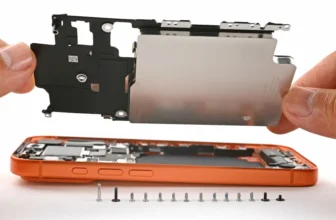
A new flagship phone draining faster than expected is more common than people think, and it doesn’t automatically mean your battery is faulty. Before assuming the worst, it helps to work through the usual suspects in order — starting with software, then environment, then hardware. This guide walks through each stage so you can pinpoint what’s actually causing the iPhone 17 Pro Max battery drain and decide whether a quick settings fix will do, or whether it’s time to see a technician.
Step 1: Start With the Basics
- Restart the phone.
- A simple restart clears background processes that quietly eat into battery life.
- Update iOS and your apps.
- Go to Settings → General → Software Update and check both the OS and your installed apps.
- A surprising number of battery complaints trace back to a bug that a later update quietly fixes.
- Turn on Auto-Brightness.
- Found under Settings → Accessibility → Display & Text Size → Auto-Brightness.
- A screen locked at high brightness is one of the fastest ways to burn through a charge.
- Check Battery Health.
- Go to Settings → Battery → Battery Health.
- A “Service” warning here means the battery itself has degraded and likely needs replacing.
- Use Low Power Mode as a temporary fix.
- Located at Settings → Battery → Low Power Mode.
- It scales back background activity and visual effects to stretch what charge you have left.
Step 2: Narrow Down the Cause
1. Apps Running in the Background
Open Settings → Battery to see exactly which apps are pulling the most power.
- Disable Background App Refresh for apps you don’t need updating constantly.
- Cut down on non-essential notifications and vibration alerts.
- Shorten the Auto-Lock timer under Display & Brightness.

2. A Software Bug or Recent Update
Sometimes the drain starts right after installing a new app or an iOS update.
- Check the App Store for anything you’ve updated recently.
- If one app stands out as the drain source, uninstall it and reinstall a fresh copy.
- For deeper system bugs, backing up your phone and reinstalling iOS can sometimes clear it up.
3. Weak Signal Areas
Your phone works harder — and drains faster — when it’s constantly searching for a stronger signal.
- In areas with poor coverage, switch on Airplane Mode temporarily to stop the constant searching.
- You can still turn WiFi and Bluetooth back on manually while Airplane Mode is active.
4. Extreme Temperatures
Both heat and cold hurt battery performance, sometimes more than people expect.
- Don’t leave the phone in direct sunlight or in a cold car for long periods.
- Keep it in a pocket or shaded spot when you’re outdoors for extended time.

Step 3: Rule Out a Hardware Problem
1. Natural Battery Wear
Every lithium-ion battery loses capacity over time, and that’s normal aging, not a defect.
But if Battery Health shows a “Service” warning, or the phone drains noticeably even while sitting idle, that’s usually a sign the battery itself needs replacing rather than a setting to tweak.

2. A Faulty Charging Port
Dust, lint, moisture, or slightly bent pins inside the charging port can all cause unstable charging that looks like fast battery drain.
Try cleaning it gently with a dry, soft brush first — if that doesn’t help, the port assembly likely needs professional replacement.

3. Logic Board or Power Management Chip
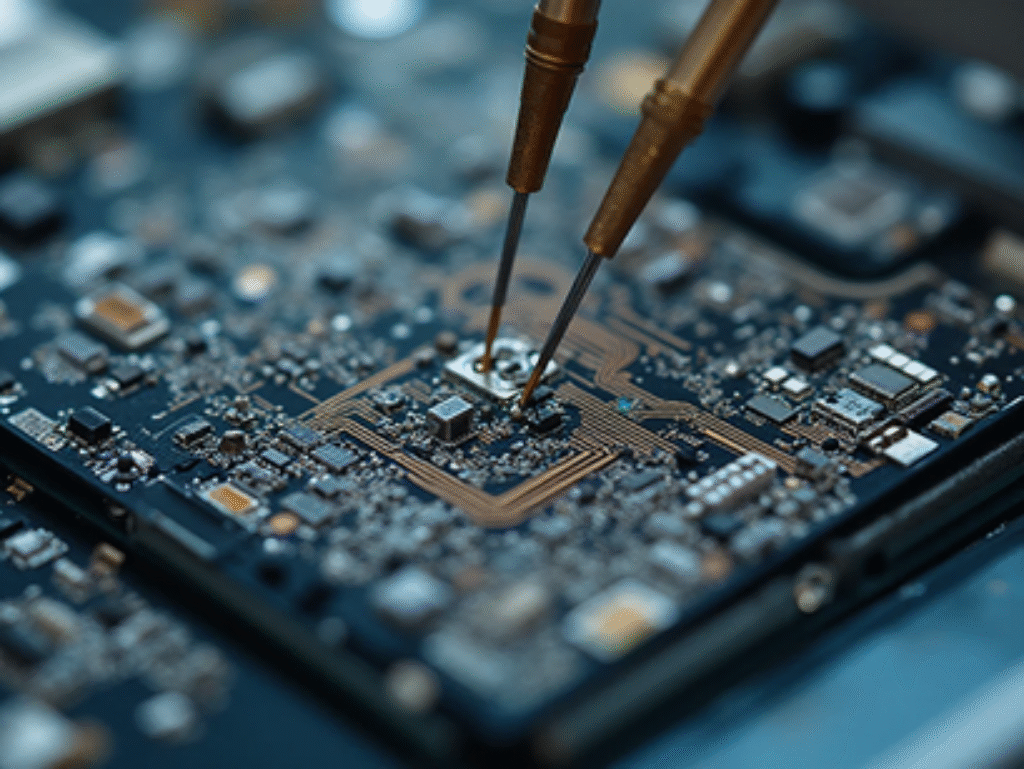
If you’ve worked through every step above and the drain hasn’t improved, the problem could be sitting deeper inside the logic board or power management circuitry.
This level of repair needs specialized tools and diagnostic equipment, so it’s best left to a professional rather than attempted at home.
When It’s Time to See a Technician
If you’ve gone through the software fixes and the drain is still there, it’s worth having the battery tested rather than guessing further. If you’re also comfortable with a DIY approach, our iPhone 17 Pro battery replacement guide walks through the process step by step, and our broader iPhone repair beginner’s guide covers what to expect before you open up any Apple device. If the phone is still fairly new and under warranty, an authorized service center should always be your first stop over a third-party repair shop.
Frequently Asked Questions
Why is my iPhone 17 Pro Max battery draining so fast?
The most common causes are background app activity, a recent software bug, weak network signal, or extreme temperatures. If none of those apply, natural battery wear or a hardware fault becomes more likely.
Does Low Power Mode damage the battery long-term?
No. Low Power Mode simply reduces background activity and visual effects temporarily. It’s safe to use regularly and doesn’t cause any lasting harm to the battery.
What does “Service” mean under Battery Health?
It means the battery’s maximum capacity has dropped enough that Apple recommends replacement. It’s not an error message — it’s a normal outcome of battery aging over time.
Can a bad charging port cause fast battery drain?
Yes. A dirty or damaged port can cause inconsistent charging, which makes the battery appear to drain faster than it actually is. Cleaning it gently is worth trying before assuming a battery fault.
Should I replace the battery myself or go to a service center?
If the phone is under warranty, always use an authorized service center. If it’s out of warranty and you’re comfortable with detailed technical work, a guided DIY replacement is possible, but any mistake can affect water resistance and other components.
How long should an iPhone 17 Pro Max battery last before needing replacement?
Most iPhone batteries hold up well for around 2 to 3 years of regular use before capacity drops enough to notice. Charging habits and heat exposure can shorten or extend that window.