
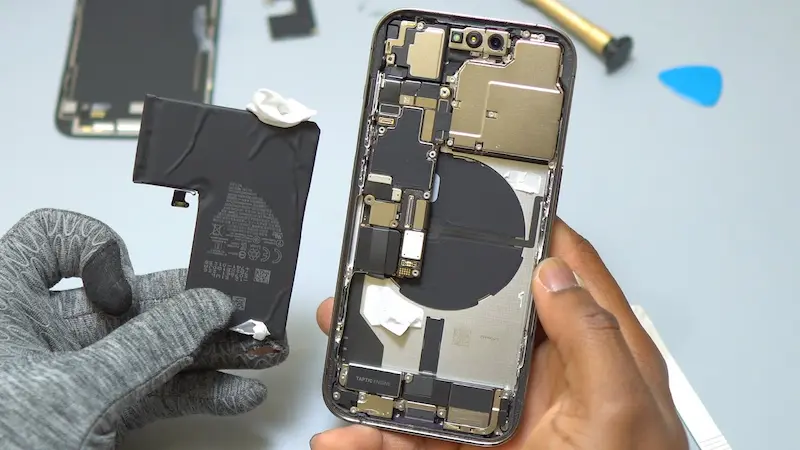
If your iPhone 14 Pro Max battery is draining quickly or showing reduced performance, replacing the battery can restore your phone’s battery life and reliability. In this detailed guide, you’ll learn how to safely remove the old battery, install a new one, and reseal your device properly.
Whether you’re a DIY enthusiast or trying to save on repair costs, follow these steps carefully for a successful battery replacement.
Tools Required for iPhone 14 Pro Max Battery Replacement
Before starting, make sure you have:
- Pentalobe screwdriver
- Y0 Tri-Wing screwdriver
- Plastic spudger
- Tweezers
- Suction cup
- Plastic guitar pick
- Razor blade (thin pry blade)
- Isopropyl alcohol (90% or higher recommended)
- New battery with adhesive
- Dust and moisture resistant screen seal
Tip: Keep screws organized during removal to make reassembly easier.
Step 1: Power Off and Remove Bottom Screws
- Power down your iPhone completely.
- Use a Pentalobe screwdriver to remove the two screws at the bottom near the charging port.
Step 2: Screen Removal
The screen is secured with strong adhesive, so heating is necessary.
- Use a heat gun or hair dryer to warm the edges of the screen until it’s hot to the touch.
- Attach a suction cup to the bottom area of the screen and gently lift.
- Add a few drops of isopropyl alcohol into the gap to soften the adhesive.
- Insert a thin razor blade slightly to widen the gap.
- Slide a plastic guitar pick along the edges (leave the top edge for last as it’s clipped in).
Carefully lift the screen like opening a book. Avoid sudden movements to prevent damage to the display cables.
⚠️ iPhone 14 Pro Max screens are expensive. Take your time and avoid inserting tools too deep.
Step 3: Disconnect Battery and Display
- Remove the screws securing the logic board shield using a Tri-Wing screwdriver.
- Lift the metal shield and set it aside.
- Use a plastic spudger to disconnect:
- Battery connector
- Screen flex cable
- Front sensor cable
Now you can remove the display completely.
Step 4: Remove the Old Battery
- Add a few drops of isopropyl alcohol under the battery (top and bottom).
- Remove the old adhesive seal around the edges of the chassis.
- Use tweezers to carefully pull the battery adhesive tabs.
- Wiggle them side to side while pulling slowly to prevent snapping.
Once loosened, lift out the battery safely.
These adhesive strips are known to snap easily, so be patient.
Step 5: Install the New Battery
- Apply the new adhesive sticker to the replacement battery.
- Make sure the adhesive is positioned correctly around the wireless charging coil area.
- Align the battery connector with the logic board socket.
- Press firmly to secure it in place.
- Disconnect the battery again before continuing assembly.
Step 6: Install New Dust & Moisture Resistant Seal
To restore protection:
- Line up the new screen seal starting from the top left corner.
- Press it firmly along the edges using a spudger.
- Leave the top protective film in place until just before closing the phone.
Step 7: Reconnect and Reassemble
- Reconnect:
- Display connector
- Front sensor cable
- Battery connector
- Reinstall the metal shield and secure all screws.
- Peel off the final protective layer from the seal.
- Close the screen by:
- Securing the top first
- Pressing left and right edges until clipped
- Reinstall the two bottom Pentalobe screws.
Step 8: Power On and Test
Turn on your device and check:
- Charging functionality
- Touchscreen responsiveness
- Face ID
- Overall performance
Note: After battery replacement, your iPhone may display a warning in Settings stating the battery has been replaced. Battery Health information may not appear. This does not affect normal performance.
Frequently Asked Questions (FAQ)
1. Will I see a battery warning after replacement?
Yes. The iPhone 14 Pro Max may show a battery replacement warning and stop displaying Battery Health. The device will still function normally.
2. How long does battery replacement take?
Typically 45–60 minutes if done carefully.
3. Can I replace the battery at home?
Yes, but you must use proper tools and follow steps carefully to avoid screen damage.
4. Does replacing the battery improve performance?
If your battery health was below 80%, you will likely notice improved battery life and smoother performance.

