Introduction
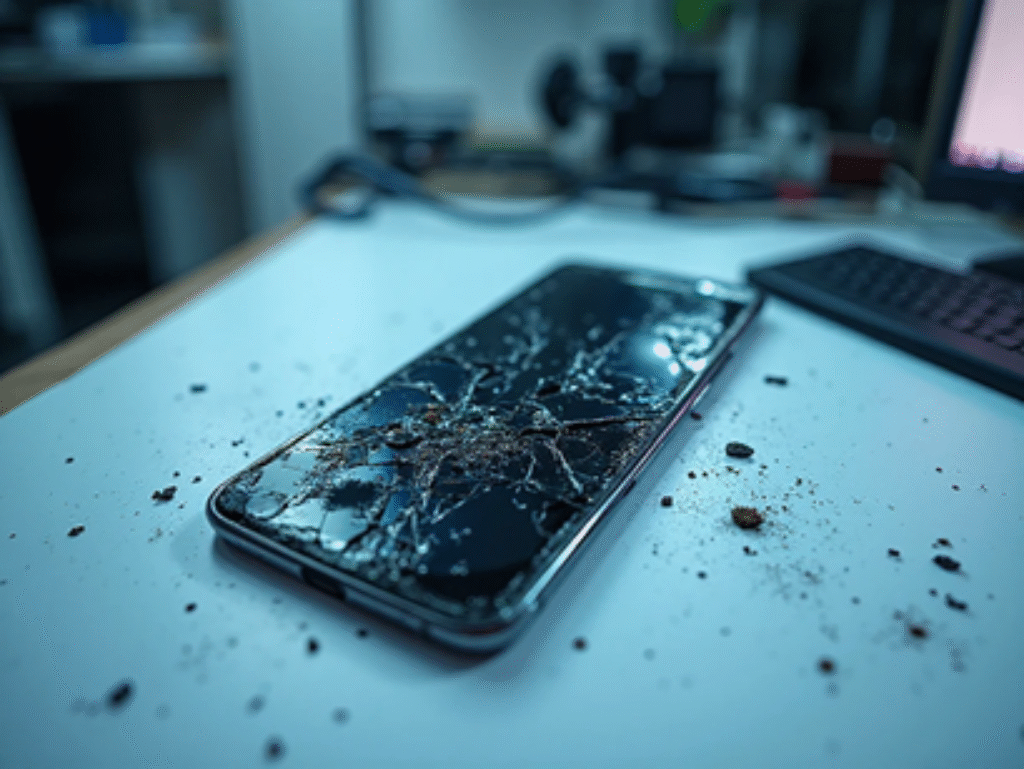
A cracked or unresponsive display on a Vivo Y20 doesn’t mean the phone is done for. The LCD and touch assembly can be swapped out at home or by a technician, and either way it’s a fairly straightforward job once you know the sequence. This guide covers the full Vivo Y20 LCD screen replacement process — tools, steps, and the precautions that actually matter.
What You’ll Need
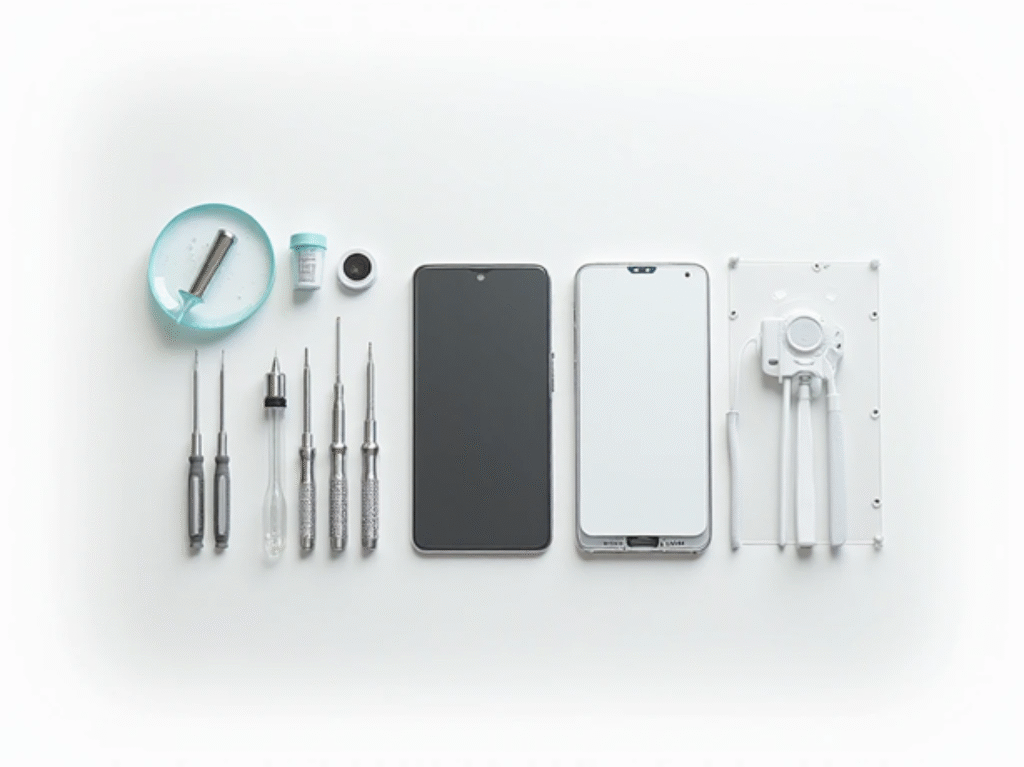
Line up every tool before you start — pausing mid-repair to hunt for a screwdriver is how parts get misplaced or lost.
Tools & Parts Required:
- Replacement Vivo Y20 LCD + touch screen assembly
- Precision screwdriver set
- Suction cup and opening picks
- Plastic spudger or pry tool
- SIM ejector pin
- Tweezers
- Heat gun or hair dryer
- Adhesive tape or glue (B-7000 or T-7000)
Step 1: Power Off the Device
Turn the phone off completely before opening it — working on a powered device risks a short circuit. Pop out the SIM tray with the ejector pin while you’re at it.
Step 2: Heat the Back Cover
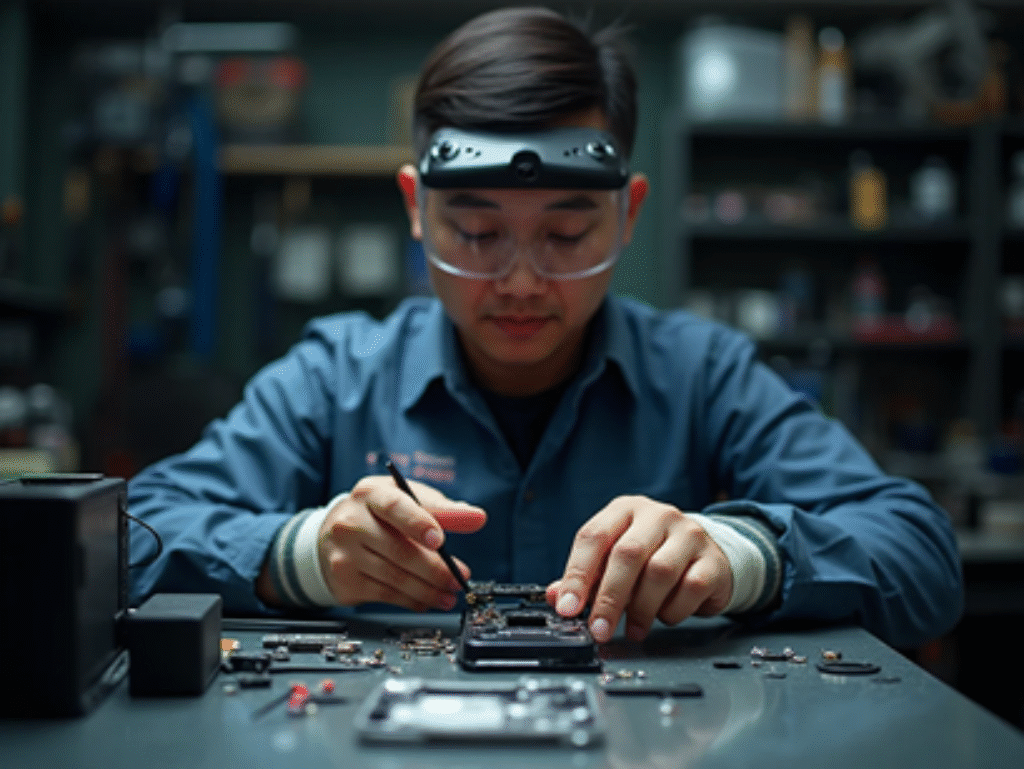
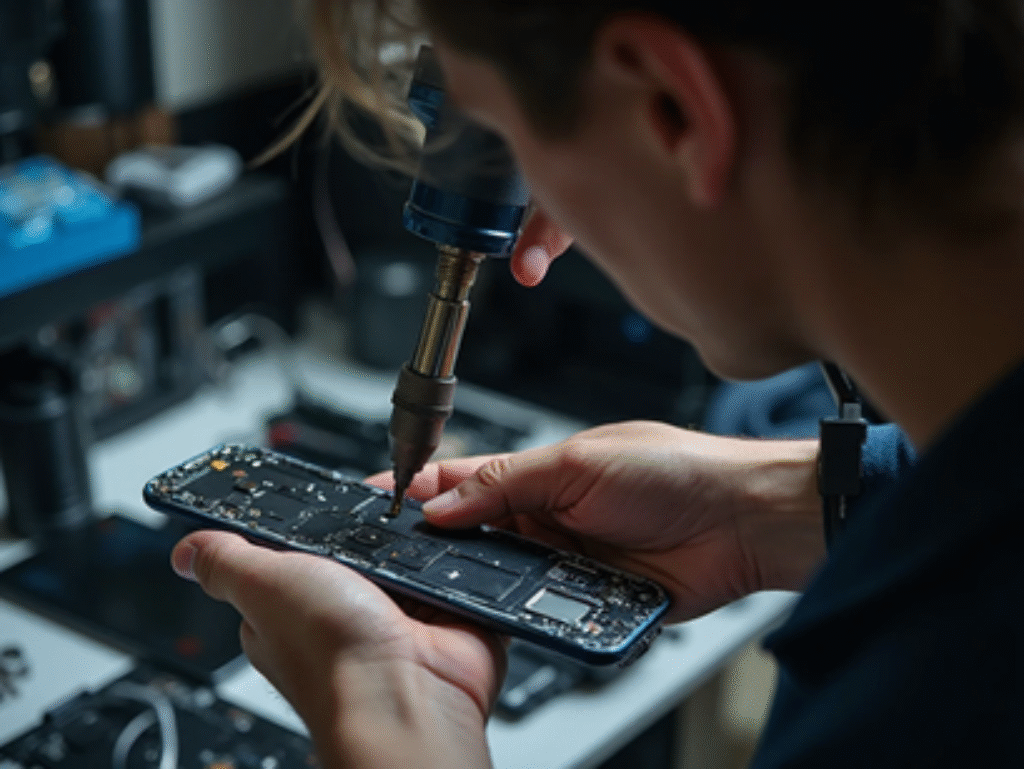
Warm the edges of the back cover with a heat gun or hair dryer for roughly 1-2 minutes. This softens the adhesive holding the cover in place so it lifts without cracking.
Step 3: Remove the Back Cover
Slide a plastic pick into the gap between the back cover and the frame, then work it around gently to release the adhesive. Lift the cover slowly, and stick to plastic tools only — metal picks scratch the frame and can nick internal components.
Step 4: Disconnect the Battery
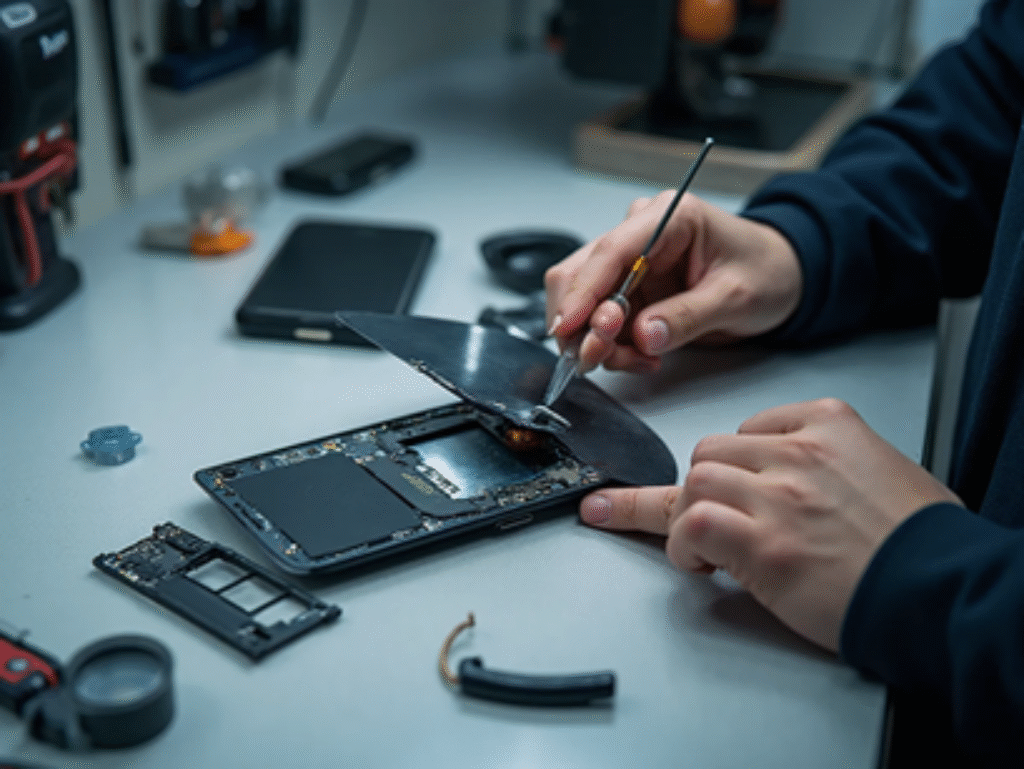
With the back cover off, find the battery connector. Unscrew and lift away its protective bracket, then use a plastic spudger to disconnect the battery. Don’t skip this — it’s the single most important safety step in the whole repair.
Step 5: Disconnect the Display Flex Cable
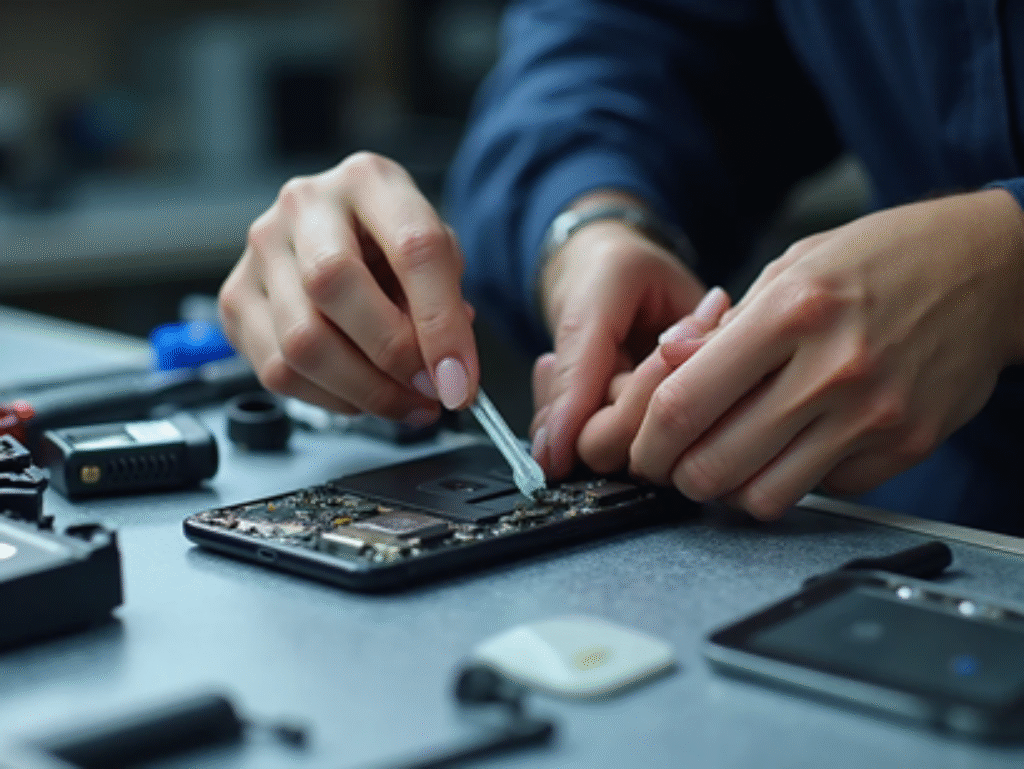
Locate the LCD/display flex cable where it connects to the motherboard and disconnect it carefully. You’ll need to remove a handful of screws and the metal shield covering the connector first.
Step 6: Separate the Broken Screen
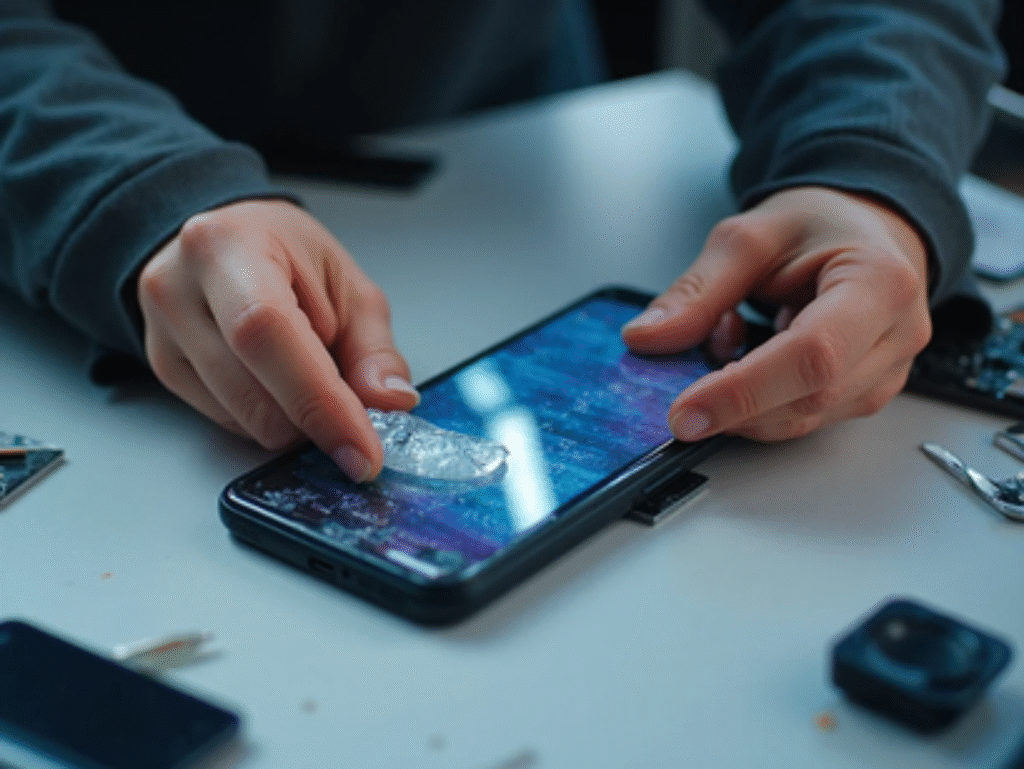
Now heat the front of the phone to soften the screen adhesive. Once it’s warm, use a suction cup to lift the screen slightly and slide a thin plastic pick around the edges to fully separate the broken LCD and touch assembly.
Step 7: Clean the Frame
Clear out any leftover adhesive or glass fragments from the frame. Alcohol wipes or a clean microfiber cloth will get the surface smooth enough for the new screen to seat properly.
Step 8: Install the New LCD
Connect the new LCD’s flex cable temporarily and test the display before sealing anything — it’s much easier to fix a bad connection now than after the glue sets. Once the display checks out, apply adhesive (B-7000 or T-7000) around the frame edges and align the new LCD into place.
Step 9: Reassemble the Phone
Reconnect the display flex cable, reattach the battery connector, and screw the metal shields back in. Snap the back cover into place and press gently around the edges for a clean seal. Power the device on to confirm touch, brightness, and color all look right.
Step 10: Test Everything
After reassembly, run through this checklist:
- Touch responsiveness
- Brightness and color accuracy
- Camera and speaker function
- Charging and fingerprint sensor (if applicable)
Tips and Safety Notes
- Stick to genuine or high-quality LCD screens — cheap panels often have color and touch accuracy issues.
- Go easy on the heat — too much can warp or damage internal components.
- Always disconnect the battery before removing the display, no exceptions.
- Apply pressure evenly while sealing the new LCD so you don’t leave air gaps under the screen.
If this level of disassembly feels like more than you want to take on, our general phone repair beginner’s guide covers precautions that apply across brands, and our related Vivo Y20 charging problem guide is worth a look if charging issues show up after reassembly.
Frequently Asked Questions
Can I replace the Vivo Y20 screen without professional tools?
You can, but you’ll still need a precision screwdriver set, a suction cup, plastic picks, and a heat source at minimum. Trying it with generic household tools increases the risk of damaging the frame or internal cables.
Why is disconnecting the battery so important?
Working on a phone with the battery still connected risks a short circuit if a tool accidentally touches exposed contacts. Disconnecting it first removes that risk entirely.
What happens if I don’t test the new LCD before sealing it?
If the new screen has a fault or a loose connection, you’d have to break the fresh adhesive seal to fix it. Testing beforehand saves you from redoing the whole final step.
How much does a Vivo Y20 LCD replacement part cost?
Pricing varies by supplier and part quality, so it’s best to check with local mobile parts dealers or trusted online sellers for current rates rather than relying on a fixed figure.
Is it safe to use a hair dryer instead of a heat gun?
Yes, a hair dryer on a medium-high setting works fine for softening adhesive. Just keep it moving and avoid holding it too close to one spot for too long.
Will this repair affect the fingerprint sensor?
It shouldn’t, as long as any related flex cables are reconnected correctly during reassembly. Always test the fingerprint sensor as part of your final checks.