
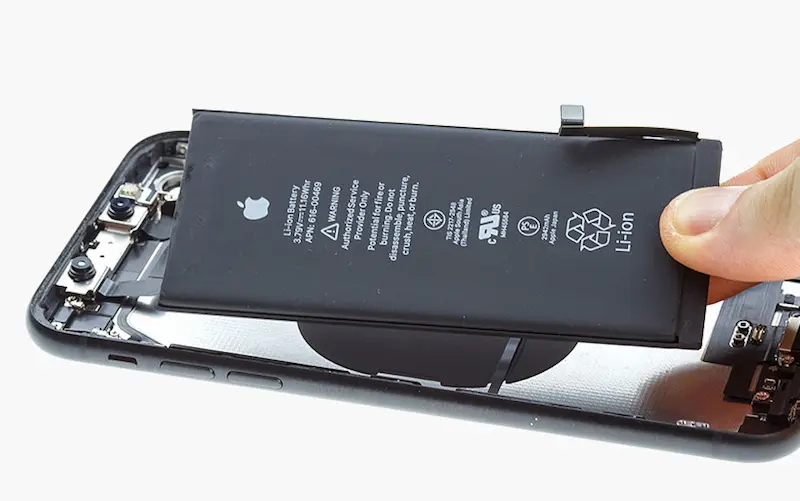
If your iPhone XR battery health has dropped, drains quickly, or shows the “Important Battery Message” or “Unknown Part” error, this complete guide will help you replace and calibrate the battery properly.
In this tutorial, you’ll learn:
- How to safely open the iPhone XR
- How to remove old battery adhesive
- How to install a new battery
- How to calibrate it using Apple Repair Assistant
- How to restore water resistance
If you’re thinking about upgrading instead of repairing, you can check the latest:
iPhone XR Price in Pakistan
https://pricetoday.pk/mobile/apple-iphone-xr-price-in-pakistan/
You can also compare all Apple models here:
Apple iPhone Price List in Pakistan
https://pricetoday.pk/mobile/apple-iphone-price-in-pakistan/
Tools Required for iPhone XR Battery Replacement
Before starting, prepare:
- Pentalobe screwdriver (0.8 mm)
- Tri-Wing screwdriver (0.8 mm)
- Phillips screwdriver (1 mm)
- Standoff screwdriver (1.5 mm)
- Plastic pry tools / plastic card
- Tweezers
- Suction cup
- Waterproof sealing tape
- Battery adhesive strips
- Hairdryer (for softening adhesive)
- New replacement battery
💡 Tip: Use a magnetic mat to organize screws during disassembly.
Step 1: Turn Off the iPhone XR
Press and hold Volume Up + Power button and power off the device completely.
Step 2: Remove Bottom Screws
Remove the two pentalobe screws located near the charging port.
Step 3: Heat the Display
Use a hairdryer to heat the screen edges for about 1 minute.
This softens the adhesive holding the display.
⚠️ Do not overheat. Moderate warmth is enough.
Step 4: Open the iPhone XR Safely
- Attach a suction cup at the bottom of the display.
- Gently pull until a small gap appears.
- Insert a plastic pick or card between the frame and display.
- Carefully slide around the perimeter to loosen adhesive.
⚠️ Important:
Do not insert tools too deeply at the top to avoid damaging Face ID components.
Lift the display carefully while keeping cables intact.
Step 5: Disconnect Battery and Display Cables
- Remove the metal shield above the battery connector (Tri-Wing screws).
- Disconnect the battery cable first.
- Remove the second metal shield.
- Disconnect the three display cables.
Always disconnect the battery before working on other components.
Step 6: Remove Taptic Engine and Speaker (Recommended)
For easier battery removal:
- Unscrew and remove the Taptic Engine
- Disconnect its cable
- Remove bottom speaker screws
- Gently heat and lift the speaker if needed
This provides better access to adhesive strips.
Step 7: Remove Old Battery Adhesive
The iPhone XR battery is secured with four stretch-release adhesive strips.
- Use tweezers to peel the black pull-tab.
- Pull slowly and steadily.
- Repeat for all four strips.
If Adhesive Breaks
If a strip snaps:
- Add a few drops of isopropyl alcohol under the battery
- Wait one minute
- Gently lift using a plastic spatula
Alternatively, apply heat to the rear casing to loosen adhesive.
Carefully remove the battery without bending or puncturing it.
Step 8: Install the New Battery
- Apply new adhesive strips to the back of the battery.
- Place the battery into the housing.
- Align the battery connector properly with the mainboard socket.
- Press lightly to secure.
Reinstall the Taptic Engine and speaker.
Step 9: Test Before Final Assembly
Before sealing:
- Connect the three display cables first.
- Then connect the battery cable.
- Power on the device and test:
- Display
- Touch
- Face ID
- Charging
- Camera
If everything works correctly, proceed to calibration.
How to Calibrate iPhone XR Battery (Fix “Unknown Part” Error)
After battery replacement, calibration ensures:
- Correct battery health percentage
- Removal of Important Battery Message
- Genuine/Used status confirmation
Steps to Use Repair Assistant:
- Go to Settings → General → About
- Open Parts & Service History
- Tap Restart & Finish Repair
- Connect to stable Wi-Fi
- Ensure battery level is above 20%
The configuration process may take several minutes.
After completion:
- You’ll see “Genuine” or “Used” next to the battery
- Battery health will display correctly
If Repair Assistant Fails
Try these solutions:
- Ensure stable Wi-Fi connection
- Make sure battery is above 20%
- Restart and retry
- Reconnect battery cable
- Check if third-party battery supports calibration
- Ensure battery isn’t locked with Activation Lock
Even if calibration fails, the phone will still work — but may show “Unknown Part” status.
Restore Waterproof Protection
After successful calibration:
- Remove old adhesive from frame
- Clean frame with isopropyl alcohol
- Align new waterproof sealing tape carefully
- Press firmly using spudger
- Remove protective liner
⚠️ This restores dust and splash resistance but does not guarantee full waterproofing.
Final Assembly
- Connect display cables
- Connect battery cable
- Secure metal shields
- Remove dust from camera lenses
- Press display around edges
- Install two bottom screws
Your iPhone XR battery replacement is complete.
Should You Replace Battery or Upgrade?
If your iPhone XR is still performing well, battery replacement is a cost-effective solution.
However, if you’re considering upgrading, compare:
- Latest iPhone prices in Pakistan
https://pricetoday.pk/mobile/apple-iphone-price-in-pakistan/
This helps you decide between repair and buying a new device.
FAQ – iPhone XR Battery Replacement
How much does iPhone XR battery replacement cost in Pakistan?
It depends on whether you choose a genuine or third-party battery. Genuine batteries cost more but allow proper calibration.
Why does my iPhone XR show “Unknown Part” after battery replacement?
This appears when the battery hasn’t been calibrated through Apple’s Repair Assistant or if it’s a non-genuine part.
Does replacing the battery improve performance?
Yes. If battery health is low, replacing it improves backup time and prevents sudden shutdowns.
Can I replace iPhone XR battery at home?
Yes, but it requires technical knowledge and proper tools. Mistakes can damage Face ID or internal components.

